TABLE OF CONTENTS
Before you print (quick checks)
Make sure:
You’re using the Ricoh PostScript (PS) driver (best for finishing)
Paper is Letter (8.5 × 11)
The machine has a booklet finisher installed
If any of those are off, macOS will quietly hide the booklet options.
If using a PC:
Step-by-step: Saddle stitch booklet on PC
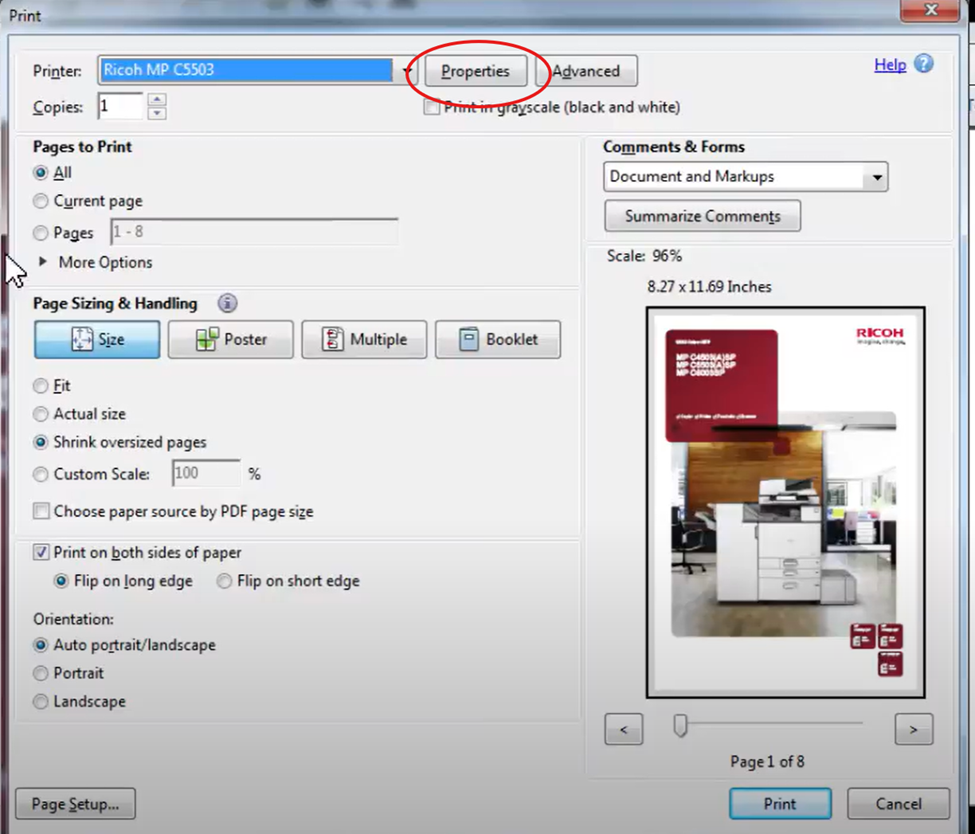
1️⃣ Open Print
File → Print
Select Ricoh IM C3500
Click Printer Properties or Preferences
2️⃣ Go to the Finishing tab
Depending on driver, look for:
Finishing
Layout
Detailed Settings
(Usually Finishing for PS drivers.)
3️⃣ Turn on Booklet mode
In Finishing:
Booklet: ON
Binding Edge: Center
Booklet Type: 2-Sided
This tells Ricoh to impose the pages correctly.
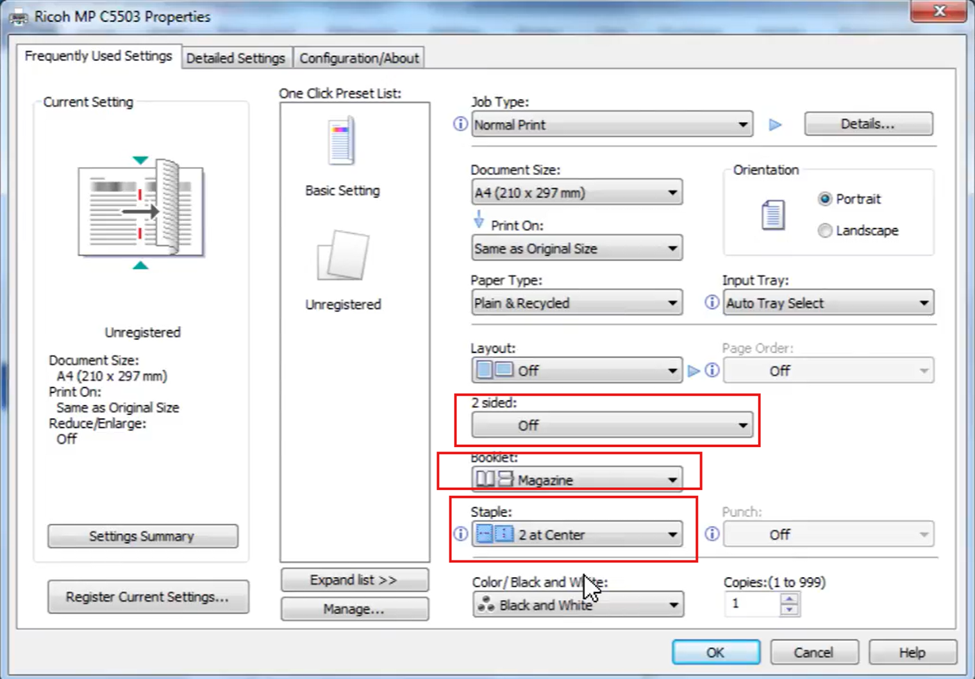
If the Booklet option is grayed out or unavailable, be sure to turn the 2-sided setting to "Off"
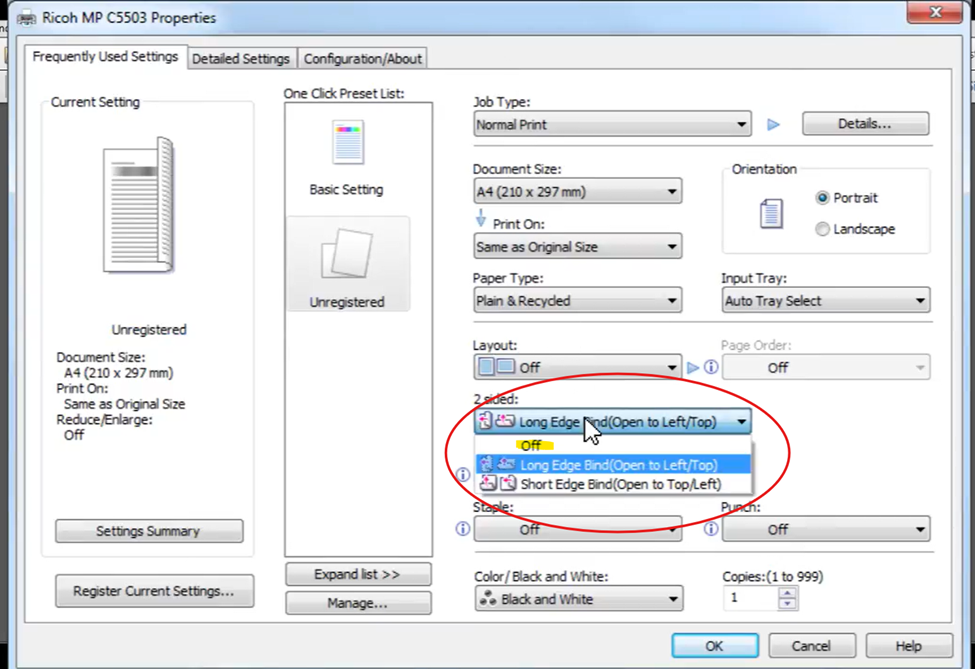
4️⃣ Enable Saddle Stitch (the important part)
Still in Finishing:
Staple: Saddle Stitch
If you only see:
None
1-Staple
2-Staple
→ That means the finisher isn’t detected or the tray/paper isn’t compatible yet. And you should contact RJ Young so one of our technicians can fix that.
5️⃣ Confirm paper & tray
Go to Paper / Paper Source tab:
Paper Size: Letter
Input Tray: Auto Select or a tray that supports booklet
❌ Do NOT use Bypass
Be sure paper is in landscape positioning in the tray
Ricoh will hide saddle stitch if the tray can’t fold/staple.
6️⃣ Apply & Print
Click Apply → OK → Print
Your output will be folded and center-stapled automatically.
If “Saddle Stitch” is missing on PC
Run through these in order (90% of fixes):
✅ Confirm driver type
Devices & Printers → Printer Properties
Should say PostScript, not Generic or PCL6
✅ Enable finisher in driver
Printer Properties → Device Settings
Set finisher model correctly (SR3240 / SR3260, etc.)
✅ Document page count
Must be divisible by 4
✅ Change tray
Explicitly pick Tray 1 or 2 instead of Auto
❌ Avoid heavy paper
Thick stock disables booklet finishing
Pro move (highly recommend)
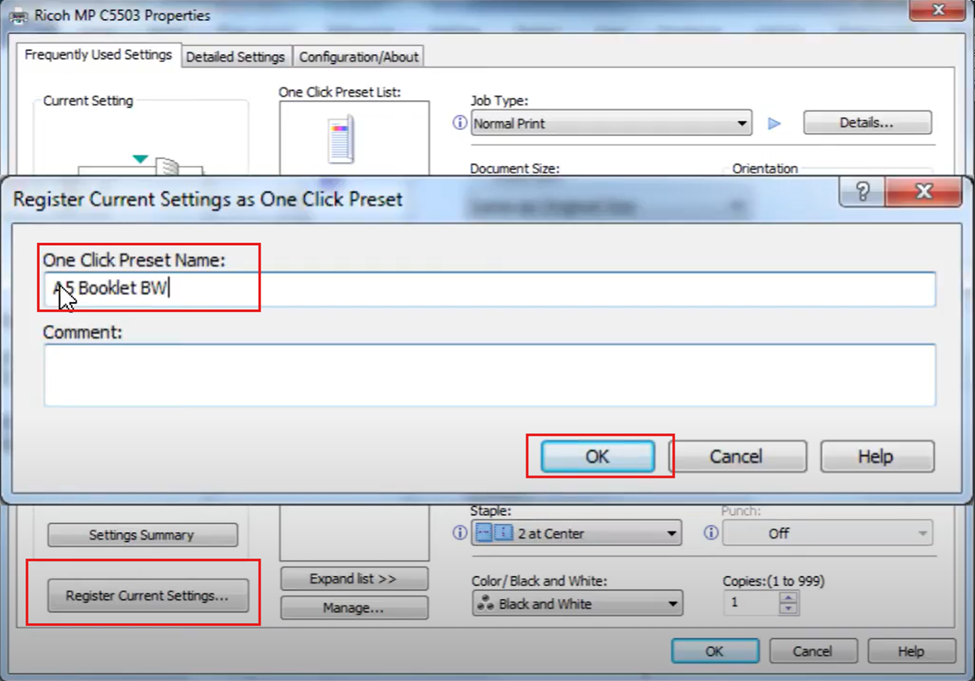
Save it as a Printing Preference:
Once everything’s set
Preferences → Save
Name it:
“Booklet – Saddle Stitch”
Next time it’s a one-click job and you look like a wizard ?♀️
If using a Mac:
Step-by-step: Saddle stitch booklet on Mac
1️⃣ Open Print
File → Print
Select your Ricoh IM C3500
2️⃣ Open the Ricoh features panel
In the print window:
Find the dropdown that usually says Layout
Change it to Printer Features
(sometimes called Features or Finishing, depending on driver)
3️⃣ Turn on Booklet mode
In Printer Features:
Booklet: ON
Booklet Type: 2-Sided
Binding Edge: Center
? This tells the printer to impose the pages correctly.
4️⃣ Enable Saddle Stitch (this is the key step)
Still in Printer Features:
Staple: Saddle Stitch
If you only see “None” or “1-Staple,” that usually means:
The finisher isn’t detected, or
Paper/tray selection isn’t compatible
5️⃣ Confirm paper settings
Switch the dropdown to Paper Feed:
All Pages From: Automatically Select or the tray that supports booklet
Paper Size: Letter
Avoid the Bypass Tray — it disables booklet finishing.
6️⃣ Print
Click Print ?
Your output will:
Be imposed
Folded
Center-stapled
If “Saddle Stitch” doesn’t appear on Mac
Try these fixes in order:
Confirm PS driver
System Settings → Printers & Scanners → Ricoh → Options & Supplies
Check finisher is installed
Under Options, booklet finisher must be enabled
Page count
Document must be divisible by 4
Change tray
Go back to Paper Feed and select a different tray.
Contact RJ Young and one of our Service Technicians will be happy to help fix any issues. Click HERE for instructions on requesting service.
Pro tip (worth it)
Save this as a Preset:
After setting everything up
Print dialog → Presets → Save Current Settings
Name it something like “Booklet – Saddle Stitch”
Next time: one click. No hunting. No swearing at the printer
Was this article helpful?
That’s Great!
Thank you for your feedback
Sorry! We couldn't be helpful
Thank you for your feedback
Feedback sent
We appreciate your effort and will try to fix the article